Practical answer
Choose the primary screen before arranging a laptop and external monitor. If the external display carries most work, center it and raise the laptop as a nearby secondary display. If both screens are used equally, align their useful areas and keep similar viewing distances.
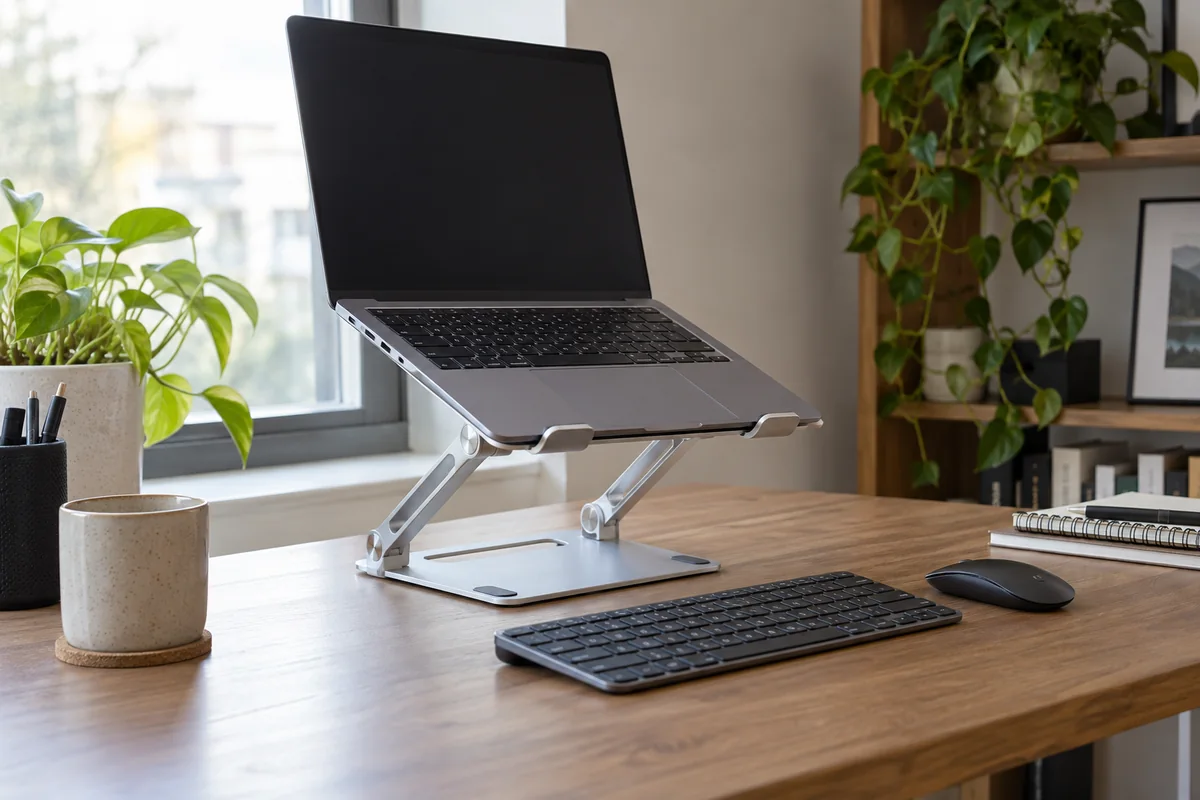
Use an external keyboard and pointing device whenever the laptop is raised or placed to the side for sustained work. Connection limits, dock behavior, webcam position and operating-system display arrangement belong in the setup plan.
- Declare one primary screen
- Use external inputs with a raised laptop
- Match physical and digital screen positions
- Verify host display limits before buying a dock
Choose an open or closed-laptop layout
| Layout | Useful when | Check |
|---|---|---|
| External primary, laptop open beside it | Laptop holds chat, notes or a camera preview | Raise it, keep it close and limit repeated neck rotation |
| Two screens used equally | Work moves continuously between both | Similar distance, aligned useful areas and centered seam |
| Laptop closed with external display | Desk space and one-screen focus matter | Model support, power, cooling guidance, external keyboard and mouse |
| Laptop primary, external reference display | Laptop camera or keyboard must remain central | Low built-in screen and long internal-keyboard sessions can conflict |
Verify the complete connection path
- Identify the laptop model and its supported external display count, resolution and refresh rate.
- Confirm whether the chosen port and cable carry video directly or through a dock technology.
- Connect and arrange displays in the operating system to match physical left, right and vertical positions.
- Test sleep, wake, power delivery, webcam, microphone and input switching before securing cables.
- For closed-lid use, follow the exact laptop maker requirements and monitor temperature and stability without blocking vents.
Tune the physical setup after it works
- Center the screen receiving most visual attention on the seated body, not merely on the desk.
- Keep both displays readable without leaning forward; adjust scaling before pulling one screen much closer.
- Position the external keyboard and mouse so elbows stay near the body.
- If the laptop camera creates a side-facing call, use the external display less during calls or change the camera arrangement.
Questions people ask
Should the laptop and monitor be the same height?
Align the useful viewing areas according to task share. Exact bezel height matters less than a comfortable primary screen and limited neck rotation.
Is closed-lid mode better?
It can reduce visual clutter and free space, but only when the laptop supports the chosen display setup and its power, input, cooling and wake requirements are met.
Why does the dock mirror instead of extend?
Host limits, operating system, dock display technology, cable capability or settings may be responsible. Verify the exact hardware path rather than replacing cables at random.
Sources and methodology
These sources support the setup logic and boundaries above. Check product-specific instructions before making a purchase or changing electrical equipment.
- Computer Workstations Evaluation Checklist — U.S. Occupational Safety and Health Administration ↗Monitor height, distance, and multiple-monitor placement checkpoints.
- Office Ergonomics — Positioning the Monitor — Canadian Centre for Occupational Health and Safety ↗Viewing angle, viewing distance, corrective-lens, wide-screen, and multiple-monitor guidance.
- How to use multiple monitors in Windows — Microsoft Support ↗Official detection, arrangement, scaling and extend/mirror controls.
- Connect displays to your Mac — Apple Support ↗Model-specific Mac display support and connection guidance.
- Allow accessories to connect to Mac — Apple Support ↗Official closed-lid and accessory authorization requirements.