Practical answer
For a small desk, the best monitor arm is the one that fits the rear edge, keeps the screen at a usable distance, and can fold into the space you actually have. Maximum reach matters less than the arm geometry at your normal viewing position.
Measure the desktop, wall gap, edge construction, monitor weight, VESA pattern, and cable path before comparing brands. A compact desk can reject an otherwise excellent arm because its clamp collides with a frame rail or its rear elbow needs space behind the desk.
- Measure beneath the rear edge, not only the desktop
- Check screen weight without the factory stand
- Map the folded arm against the wall
- Protect cable slack through the full motion range
Draw a fit map before choosing an arm
| Measurement | Where to measure | What it rules out |
|---|---|---|
| Usable rear-edge width | Clear edge between legs, frame rails and grommets | Clamps that cannot sit where the screen must be centered |
| Desktop thickness and underside clearance | At the exact clamp position | Clamp bolts or plates that collide with an apron or cable tray |
| Wall gap | Desktop rear edge to wall at the working height | Arms whose elbow must swing behind the desk |
| Screen load and VESA interface | Monitor manual, excluding the original stand | Arms outside the published load range or mounting pattern |
| Desired eye-to-screen distance | Normal seated posture to active screen | Layouts that reclaim surface area but put the screen too close |
Choose geometry for the desk, not for the product photo
A deep articulated arm can be useful when the desk floats away from a wall, but the same elbow may consume precious rear clearance on a shallow desk. If the desk is against a wall, look for a documented ability to fold back within the desktop boundary or use a pole-style arrangement with less rear swing.
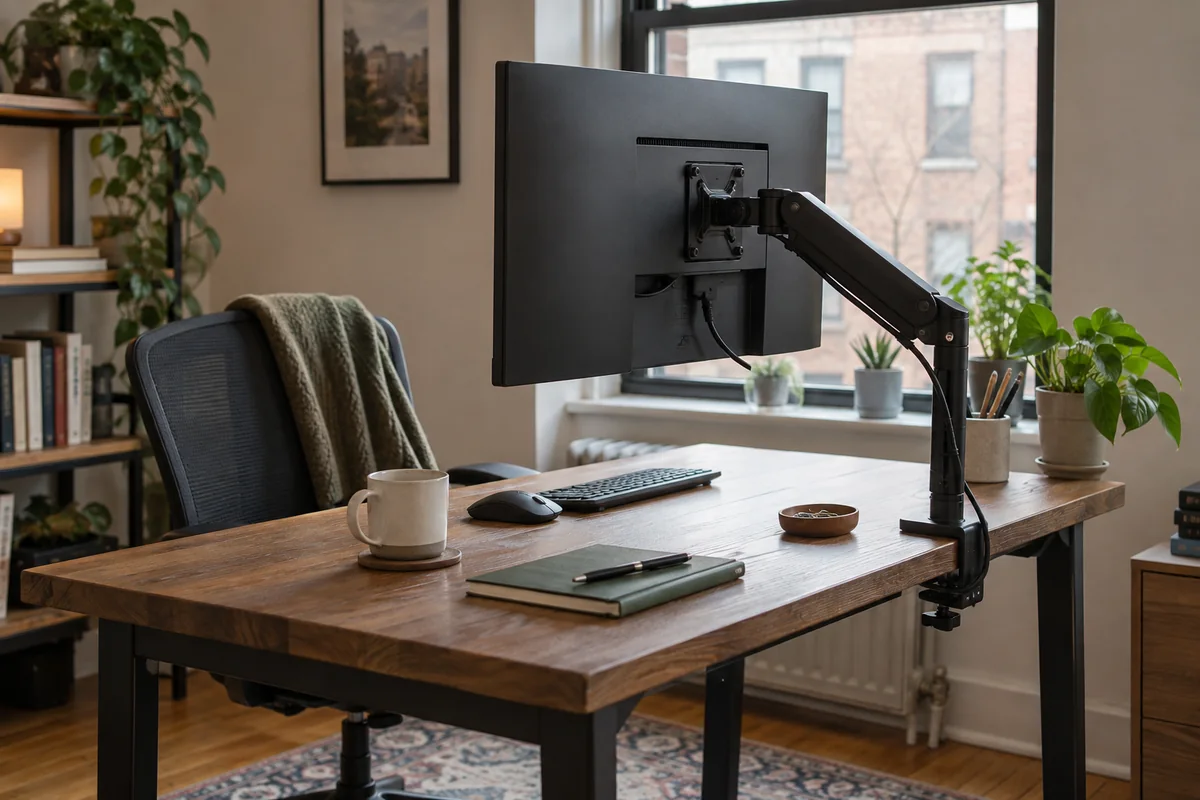
The mount point and screen center do not need to be directly aligned. An offset clamp can free the central rear edge, but it adds side loading and changes the cable route. Use the manufacturer installation drawing rather than estimating from a staged image.
Run a paper installation before ordering
- Record the exact monitor model, published weight without stand, VESA pattern, and any recessed mounting area.
- Trace the clamp plate and bolt clearance from the manufacturer drawing onto paper or cardboard.
- Hold the template above and below the intended edge; check the desk frame, bevel, drawer, cable tray and wall.
- Mark the desired screen center and viewing distance, then confirm the arm can reach it without resting at an extreme joint angle.
- Plan one loose cable loop at each moving joint and confirm that connectors will not carry the cable weight.
Published-spec examples for different constraints
These examples are not universal rankings. Each one remains on the shortlist because its published design fits a different workspace constraint. No affiliate relationship influenced inclusion.
| Model | Useful for | Published highlights | Verify before buying |
|---|---|---|---|
| LX Desk Monitor Arm Ergotron | Frequent screen repositioning | Single-monitor desk mount; Multiple published desk-attachment options | Premium positioning |
| Ollin Monitor Arm Herman Miller | Light-to-midweight monitors | Published support up to 20 lb; 26.5-inch horizontal and 13.5-inch vertical movement | Premium positioning |
| M2 Pro Humanscale | Displays within the published 5–22 lb range | Published 5–22 lb capacity; Up to 43-inch screen guidance | Configuration affects final fit and price |
LX Desk Monitor Arm
Best suited to: Frequent screen repositioning; Desks that can accept a clamp or grommet mount.
A flexible arm for buyers who value adjustability and a long published warranty. Manufacturer documentation highlights single-monitor desk mount, multiple published desk-attachment options, cable routing built into the arm.
Potential strengths
- Broad adjustment approach
- Folds back to reclaim desk depth
- Official documentation is unusually detailed
Points to verify
- Premium positioning
- Desk edge and display compatibility still require measurement
Ollin Monitor Arm
Best suited to: Light-to-midweight monitors; Users who reposition a screen frequently.
A broad-motion option for relatively light displays and tight adjustment routines. Manufacturer documentation highlights published support up to 20 lb, 26.5-inch horizontal and 13.5-inch vertical movement, tool-free thumbwheel adjustment.
Potential strengths
- Wide published motion range
- Low minimum load is useful for lighter displays
- Clamp variants and cable management are documented
Points to verify
- Premium positioning
- Clamp choice and desk thickness must be matched carefully
M2 Pro
Best suited to: Displays within the published 5–22 lb range; Desks where controlled arm rotation matters.
A compact current-generation arm for conventional single-monitor loads. Manufacturer documentation highlights published 5–22 lb capacity, up to 43-inch screen guidance, integrated cable management and smart stop rotation control.
Potential strengths
- Current Humanscale model
- Relatively compact load range
- Multiple mounting configurations
Points to verify
- Configuration affects final fit and price
- Screen depth and center of gravity still require checking
Questions people ask
Does a monitor arm always save space on a small desk?
It usually frees the stand footprint, but an arm can force the display forward or require wall clearance. Judge usable keyboard depth and screen distance after installation, not just the empty area under the monitor.
Can I clamp an arm to a hollow or glass desktop?
Only if the desk and arm manufacturers permit that construction and the load can be spread safely. Do not infer suitability from thickness alone.
Is a higher weight capacity automatically better?
No. The display must also meet any minimum load, size, depth and pivot requirements. An oversized arm can be harder to tune for a light screen.
Sources and methodology
These sources support the setup logic and boundaries above. Check product-specific instructions before making a purchase or changing electrical equipment.
- Computer Workstations Evaluation Checklist — U.S. Occupational Safety and Health Administration ↗Monitor height, distance, and multiple-monitor placement checkpoints.
- Office Ergonomics — Positioning the Monitor — Canadian Centre for Occupational Health and Safety ↗Viewing angle, viewing distance, corrective-lens, wide-screen, and multiple-monitor guidance.
- LX Desk Monitor Arm — Ergotron ↗Official installation, adjustment, mounting and compatibility documentation.
- Ollin Monitor Arm product details — Herman Miller ↗Official motion, load and configuration information.
- Monitor Arms — Humanscale ↗Current M2 Pro configuration and published capacity information.