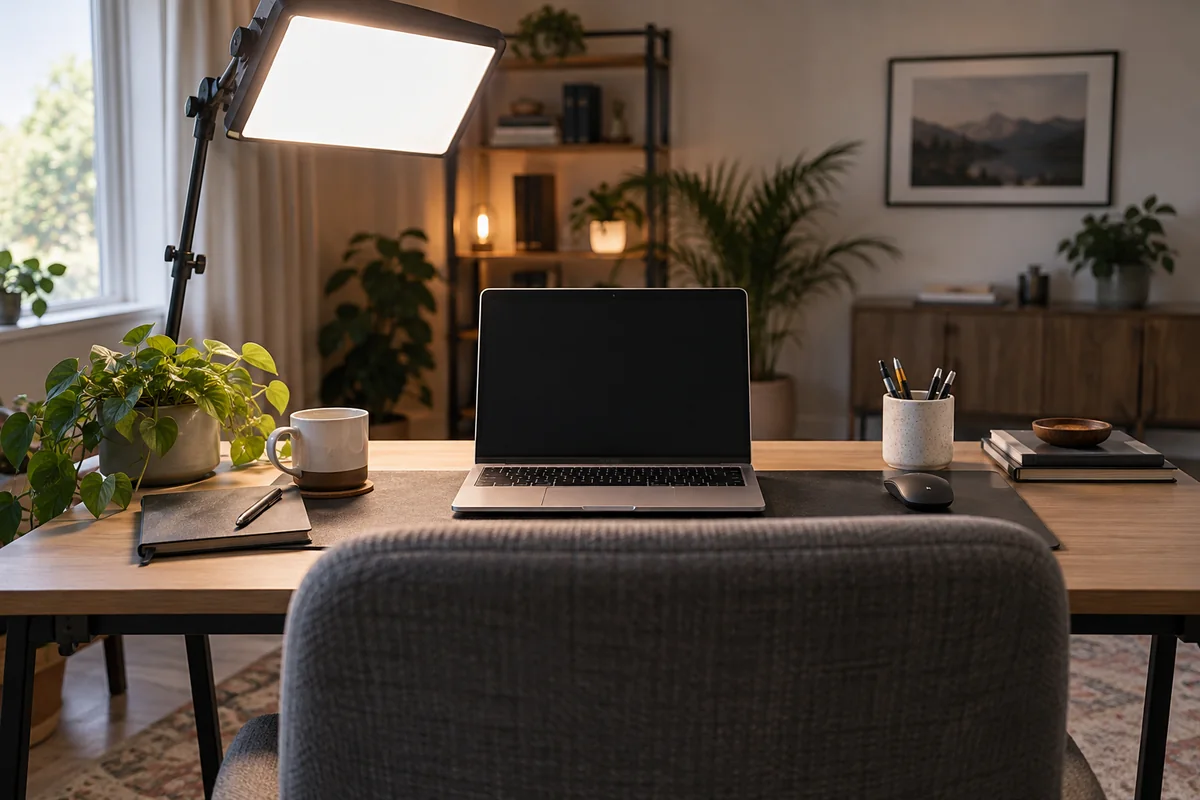
Practical answer
Start with physical placement: put the webcam close to eye level, center it with the seat, and set a distance that shows the head and upper torso without forcing you to lean toward the laptop. Then move the meeting window close to the lens so looking at other people does not pull your gaze far sideways.
Use the actual pre-join preview or a short recording. Camera settings, automatic framing, brightness controls and eye-contact effects vary by device and app; they can refine a sound setup but should not be used to hide an unstable mount, poor crop or blocked lens.
- Mount before applying effects
- Keep the call window near the lens
- Verify the crop in the real app
- Recheck privacy and microphone placement
Set the physical frame first
- Sit in the chair position used for calls and set the screen to a readable distance before touching the camera.
- Place the lens near eye level and as close to the centerline of the seat as the monitor arrangement allows.
- Set distance and camera angle so normal movement stays inside the frame without using an extreme digital crop.
- Put the meeting window or the main speaker tile directly below or beside the lens.
- Check that the mount is stable when typing, adjusting the monitor or moving a sit-stand desk.
Fix the cause shown in the preview
| Preview problem | Physical check | Software check |
|---|---|---|
| Looking down at the camera | Raise the laptop or use an external camera near the display top | Move the call window closer to the lens |
| Too much ceiling | Lower or tilt the camera and level the monitor | Reset crop or automatic framing |
| Face too dark | Turn toward a broad light and reduce bright background contrast | Use brightness controls only after lighting |
| Image shifts during the call | Tighten the mount and reduce desk vibration | Check whether automatic framing is enabled |
| Camera unavailable | Open the shutter and inspect the connection | Check operating-system and app permissions |
Run a repeatable call check
- Preview in the same app, account and browser or desktop client used for meetings.
- Record a short sample while speaking, typing and looking at shared content.
- Confirm the selected camera and microphone instead of relying on the last-used device.
- Check again at the normal meeting time because window light and exposure can change.
- Close the shutter or disable the camera when it is not intended to be active.
Questions people ask
Should the webcam be exactly at eye level?
Treat eye level as a useful starting area, not a rigid measurement. The frame, monitor height, lens field of view and glasses all affect the final position.
Can eye-contact correction fix a camera placed to the side?
It may change gaze appearance on supported hardware, but it does not fix an awkward body turn, unstable camera or poor screen placement.
How much background should be visible?
Enough to avoid a cramped crop while keeping attention on the speaker. Review the real preview and remove private or distracting items rather than relying on a universal framing ratio.
Sources and methodology
These sources support the setup logic and boundaries above. Check product-specific instructions before making a purchase or changing electrical equipment.
- Manage cameras with Camera settings in Windows 11 — Microsoft Support ↗Official camera preview, per-device controls, rotation and permission guidance.
- Use video in Microsoft Teams — Microsoft Support ↗Official pre-join preview, video settings, brightness and reframing options.
- How to use the Windows Camera app — Microsoft Support ↗Official framing-grid, video-quality and test-recording controls.