Practical answer
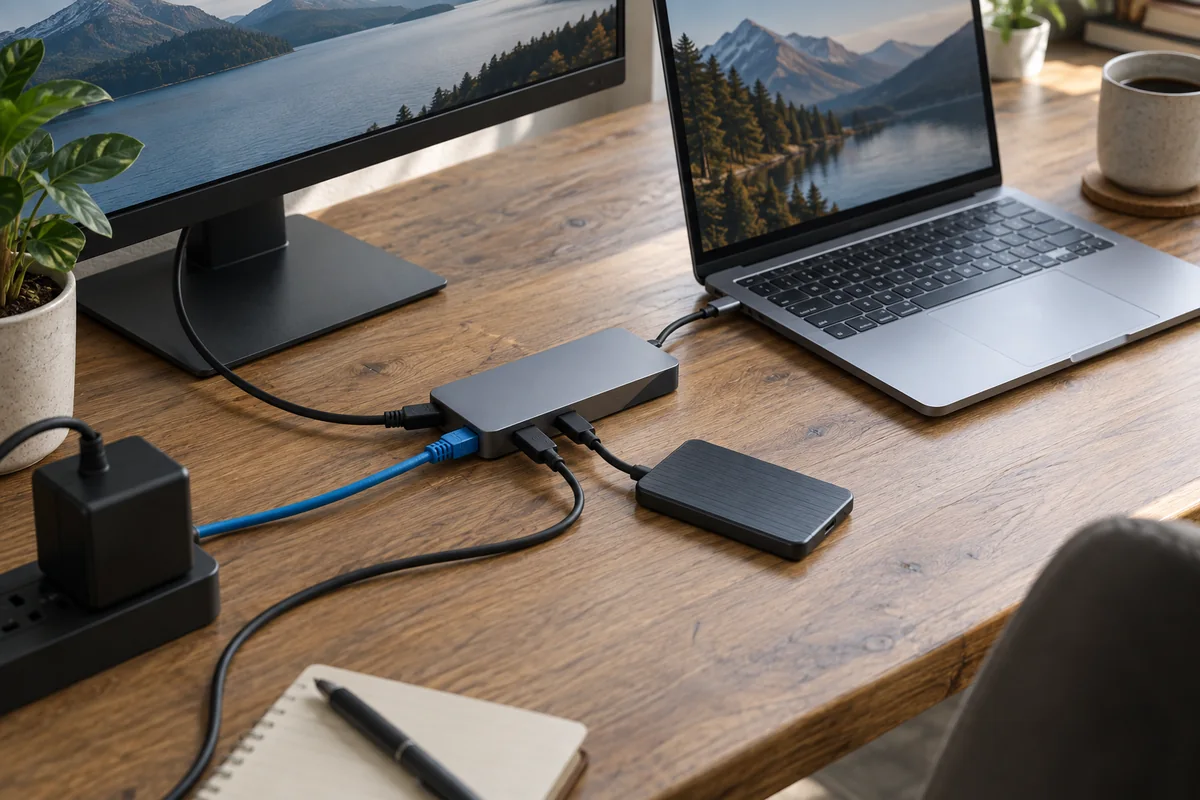
A hub is usually the smaller expansion choice for a few portable ports. A dock is usually designed as a desk endpoint with more persistent connections, power, displays or networking. Those labels are not capability standards: the host port, accessory controller, cable and operating system determine what actually works.
Write the required signals first—display count and resolution, storage speed, network, audio, charging and peripherals—then verify each path in the computer and accessory documentation. A USB-C-shaped port alone does not prove video output, Thunderbolt support or a particular data rate.
- Start with the host port
- List simultaneous signals
- Verify the included cable
- Choose for the desk workflow, not the label
Hub and dock roles by scenario
| Scenario | Hub is usually enough when | Dock is usually worth considering when |
|---|---|---|
| Travel | You need a card reader, one display or a few occasional ports | The accessory must also power a demanding laptop and several fixed devices |
| Single-monitor desk | The host supports the display mode and light peripherals | You want one-cable power, Ethernet, audio and storage left connected |
| Multiple displays | The exact host and hub document the required topology | A documented dock supports the host OS and target displays |
| Fast external storage | Bandwidth is sufficient after other active devices are counted | You need a higher-bandwidth link and repeatable desk connection |
| Managed office | Portability matters more than central management | Firmware, security, wake and fleet support are documented requirements |
Build a compatibility worksheet
- Identify the exact computer model and every relevant USB-C, USB4 or Thunderbolt port.
- Record display output support, maximum external displays and any model-specific limits.
- List devices used at the same time, including their data and power needs.
- Check host charging requirement and the power left after accessory overhead.
- Verify cable data capability, power rating, length and whether it is removable.
- Confirm operating-system, driver and firmware support before treating a port count as compatible.
Why a larger port count can mislead
- Several ports may share one upstream bandwidth path.
- Display support can differ between Windows, macOS and specific processor generations.
- A downstream USB-C port may carry data only, even when the host connection carries video and charging.
- Power advertised for the dock supply is not necessarily the wattage delivered to the computer.
- A replacement cable can reduce capability if its data or power rating is lower.
Questions people ask
Is every Thunderbolt dock a USB-C dock?
Thunderbolt uses the USB-C connector, but compatibility and available features still depend on the specific host, dock generation and documented fallback behavior.
Will a dock add more external displays than the laptop supports?
Not automatically. Host graphics and operating-system limits still apply unless the dock uses a specifically supported technology with its own requirements.
Does a powered dock charge every laptop?
Only when the host accepts charging through that port and the negotiated delivery meets its requirements. Verify both sides and the cable.
Sources and methodology
These sources support the setup logic and boundaries above. Check product-specific instructions before making a purchase or changing electrical equipment.
- USB Type-C Cable and Connector Specification, Release 2.0 — USB Implementers Forum ↗Standards definitions for Type-C roles, hubs, docks, Alternate Modes and Power Delivery communication.
- Cables and Connectors — USB Implementers Forum ↗Official cable power and data-capability marking guidance.
- Thunderbolt Messaging Guide — Intel ↗Official Thunderbolt feature and dock-capability terminology.