Practical answer
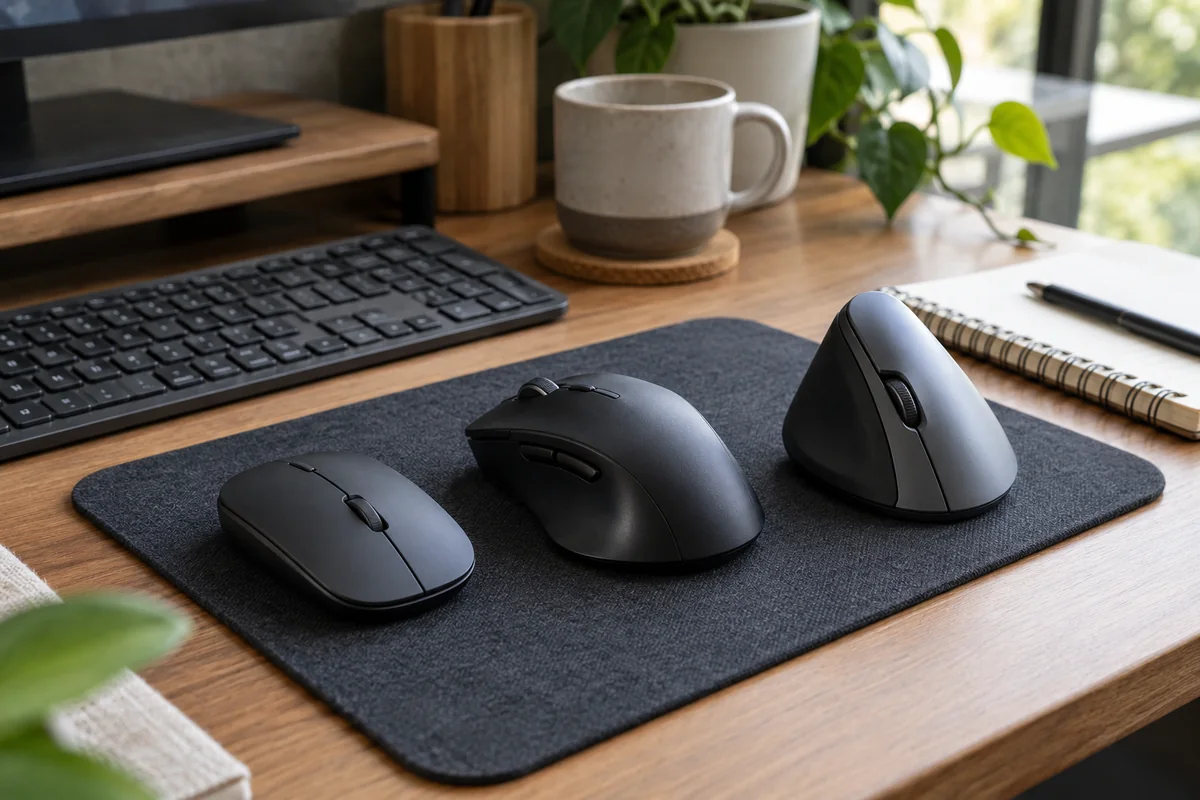
A productivity mouse should fit the hand-use pattern before it adds buttons. Start with right-, left- or ambidextrous use, available movement space, scrolling workload and every operating system. Then decide whether software customization and device switching remove enough repeated effort to justify their dependence.
No shape is universally ergonomic. A conventional mouse, vertical mouse and stationary trackball distribute movement differently; the useful choice is the one that fits the user and permits variation without sacrificing control.
- Choose movement style before button count
- Verify software on every work computer
- Separate onboard memory from app-only settings
- Treat shape fit as personal
Choose a control style from the constraint
| Constraint | Format to consider | Important limitation |
|---|---|---|
| Long documents and horizontal timelines | Mouse with separate main and thumb scrolling controls | Usually right-handed and software-dependent |
| Small-to-medium hand seeking a vertical grip | Compact vertical mouse | Adaptation period and handedness |
| Very little movement area or alternating hands | Stationary ambidextrous trackball | Large fixed footprint and cleaning routine |
| Managed computer with no utility installation | Simple mouse with useful default controls | Fewer custom commands |
| Several devices | Documented hardware switching | Receiver, Bluetooth and pairing behavior differ |
Distinguish hardware from software features
- A button can exist physically but require a utility for remapping or application-specific actions.
- Onboard memory, when documented, may carry settings without the utility; cloud or app profiles may not.
- Check Windows and macOS support separately, including managed-device installation restrictions.
- High sensor DPI does not prove better office control; operating-system speed and display scale remain part of the result.
Test the repeated task, not a demo gesture
- Use the mouse for the longest daily document, spreadsheet or design task.
- Check whether the hand can reach every control without shifting grip or holding tension.
- Map only commands repeated often enough to remember and maintain.
- Test wake, switching and scrolling on each computer.
- Keep a return option because published dimensions cannot establish personal fit.
Published-spec examples for different constraints
These examples are not universal rankings. Each one remains on the shortlist because its published design fits a different workspace constraint. No affiliate relationship influenced inclusion.
| Model | Useful for | Published highlights | Verify before buying |
|---|---|---|---|
| MX Master 3S Logitech | Spreadsheet and document workflows | MagSpeed main wheel and thumb wheel; Logi Bolt and Bluetooth connectivity | Right-handed shape |
| Lift Vertical Ergonomic Mouse Logitech | Small-to-medium hands | Published 57-degree vertical design; Logi Bolt and Bluetooth | Vertical shape has an adaptation period |
| Expert Mouse Wireless Trackball Kensington | Very small mouse areas | 55mm finger-operated ball; Four customizable buttons | Large stationary footprint |
MX Master 3S
Best suited to: Spreadsheet and document workflows; Users who map repeated commands to extra controls.
A right-handed productivity mouse with two scroll controls and software customization. Manufacturer documentation highlights magspeed main wheel and thumb wheel, logi bolt and bluetooth connectivity, 141g published weight.
Potential strengths
- Many workflow controls
- Multi-device connectivity
- Detailed platform documentation
Points to verify
- Right-handed shape
- Relatively heavy and dependent on Options+ for deeper customization
Lift Vertical Ergonomic Mouse
Best suited to: Small-to-medium hands; Users who want a vertical grip without a large body.
A compact vertical mouse available in right- and left-handed versions. Manufacturer documentation highlights published 57-degree vertical design, logi bolt and bluetooth, right- and left-handed options in select colors.
Potential strengths
- Smaller than many vertical mice
- Replaceable AA battery
- Broad operating-system support
Points to verify
- Vertical shape has an adaptation period
- Fit remains personal despite the hand-size guidance
Expert Mouse Wireless Trackball
Best suited to: Very small mouse areas; Users who prefer finger-operated trackballs.
A stationary ambidextrous trackball for desks with limited pointer space. Manufacturer documentation highlights 55mm finger-operated ball, four customizable buttons, bluetooth le and 2.4ghz receiver.
Potential strengths
- Requires little desk travel
- Ambidextrous layout
- Dedicated scroll ring
Points to verify
- Large stationary footprint
- Trackball control has a learning curve and needs cleaning
Questions people ask
How many buttons does a productivity mouse need?
Only enough for repeated commands that the user will remember. Extra controls add little value if they require awkward reach or unavailable software.
Is a vertical mouse better?
It changes forearm and hand orientation, but fit and response are individual. It is an option to trial, not a universal treatment.
Does a trackball save desk space?
It removes repeated travel across the desk, though the device itself may have a broad stationary footprint. Measure both.
Sources and methodology
These sources support the setup logic and boundaries above. Check product-specific instructions before making a purchase or changing electrical equipment.
- Workstation Components - Pointer/Mouse — U.S. Occupational Safety and Health Administration ↗Pointer placement, reach and device-fit guidance.
- MX Master 3S — Logitech ↗Official controls, connectivity and platform information.
- Lift Vertical Ergonomic Mouse — Logitech ↗Official handedness, size guidance and connectivity information.
- Expert Mouse Wireless Trackball — Kensington ↗Official trackball dimensions, controls and connection information.